
Jak używać GAM? Administracja Google Workspace w prosty sposób
Opublikowano: 2025-07-19

Ten artykuł nie jest jeszcze w pełni przetłumaczony na ten język — poniżej wersja angielska.
A beginner's guide to GAM: How to manage Google Workspace at scale?
Google Apps Manager (GAM) is a popular command-line tool that offers administrators a more effective way to manage domain and user settings in Google Workspace. It is open source and available on Windows, Linux and MacOS systems.
But why would you need an external tool to manage Google Workspace when you already have the Google Admin Console? To quote Jay Lee, the original creator of the tool: “GAM exists to save you mouse clicks.”
Why is it worth using GAM?
Even simple tasks such as checking user data require multiple clicks and navigation between different sections of the Admin console. GAM, in contrast, returns the data in seconds — with a single simple command.
GAM's greatest strength, however, is its ability to run multiple commands in parallel.
For example, suppose you need to perform 10 administrative tasks for more than 100 users. This would require a lot of time and mouse clicks through the Google Admin console.
With GAM, you can create a text or .csv file that runs all the commands for each task at once. Even better, you can save the scripts and simply re-run them whenever you want to perform certain tasks, saving hours of repetitive work.
Has it piqued your interest? Follow the instructions as we review all the essentials needed to get started with Google Apps Manager, including installation, some classic use cases and security considerations.
Getting started with GAM: Do you need special training?
To get started with Google Apps Manager, all you need is familiarity with command-line tools and a general understanding of how GAM commands are structured.
Start by practicing a single command on a single Workspace object. Then you can gradually move on to using CSV for bulk commands on multiple objects. You don't need to know every existing GAM command before starting. Just get familiar with the ones you need for your daily tasks.
The good news is that both versions of GAM have comprehensive resources that outline all the commands for various administrative tasks.
While we are on the subject, there are two popular and reliable versions of GAM — the original GAM by Jay Lee, and a forked version, GAMADV-XTD3, by Ross Scroggs.
GAM vs. GAMADV-XTD3
GAMADV-XTD3 is an extended version of GAM, so it has additional features and capabilities beyond those available in the original GAM.
However, this need not be a big issue when starting out. Regardless of which version you use, it will radically transform your workspace management tasks.
Both Jay and Ross continuously update the tools with new features, and they have built a thriving user community ready to help with any question.
As you develop your skills and engage with the GAM community, you can make a more informed decision about which version better suits your unique needs.
Setting up GAM: Installing Google Apps Manager
Although the installation may differ depending on the operating system, the basic steps are the same. The installation process is quite similar for both the original GAM and GAMADV-XTD3.
As a demonstration, I will show you how to set up Jay Lee's GAM on Windows.
You will need super administrator access to the Google Admin Console, as you will need to authorize GAM and grant it API permissions.
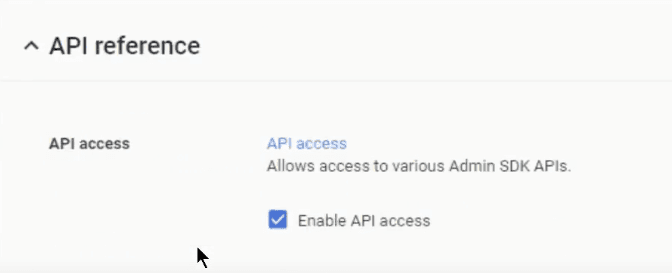
You also need to check that API access for the domain is enabled in the Admin console.
Step 1: Run the GAM installer
For Linux and MacOS, open the Terminal and run the following command:
bash <(curl -s-S-L https://gam-shortn.appspot.com/gam-install)This downloads GAM, installs it, and starts the setup.
Windows users need to download the latest MSI installer, run it, and follow the installation wizard's instructions. The installation may be flagged by Windows Defender or your antivirus. But this is normal, so don't worry about it.
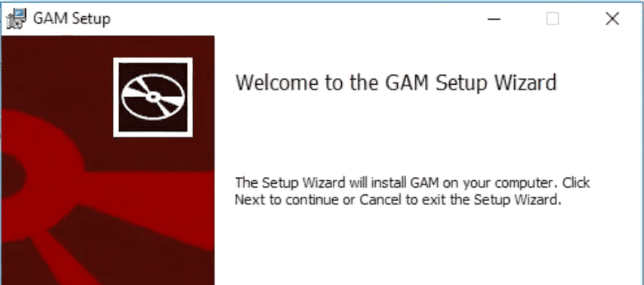
After the installation is complete, the system will ask you to enter the workspace super administrator email address to set up the Google API project and enable GAM administrator management.
Step 2: Creating a project
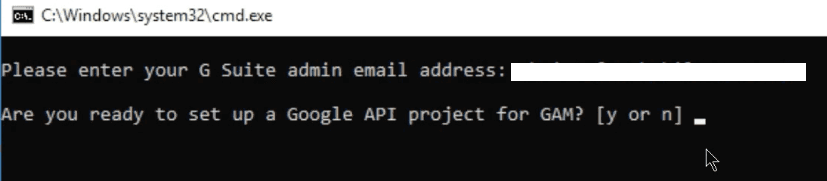
If GAM does not automatically prompt you to set up the project and installation, you can start the project creation with this command.
gam create projectThe system will ask you to enter the Google Workspace administrator email address that you will use to manage GAM.
GAM then enables all the necessary APIs and issues a URL that you need to open manually by copying and pasting it into your browser. It also provides instructions for creating the OAuth client ID and client secret, which are needed to complete the process.
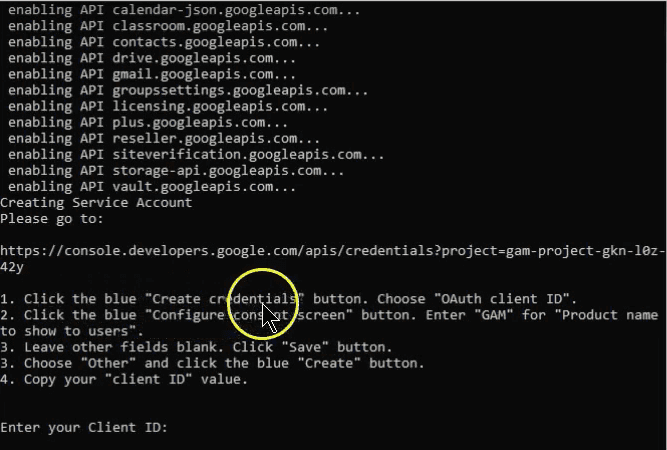
Enter the created data into the GAM command line as requested. You will then receive the following instructions to enable domain-wide delegation for the workspace and complete the process.
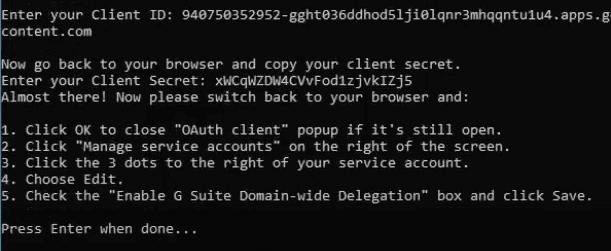
When done, press the “Enter” key, and you have completed the GAM project creation.
Step 3: Enabling GAM administrator access
You need to authorize GAM to act as a workspace administrator to perform management tasks — such as adding users, modifying group settings and retrieving domain reports.
If the system does not prompt you automatically, you can start the process with this command.
gam oauth createTo continue, enter the workspace administrator email address you used earlier.
You will get a long list of the APIs that GAM can use. By default, the most important APIs are selected. Unless you know what you are doing, simply leave this selection as it is and press the “C” key to continue authentication.
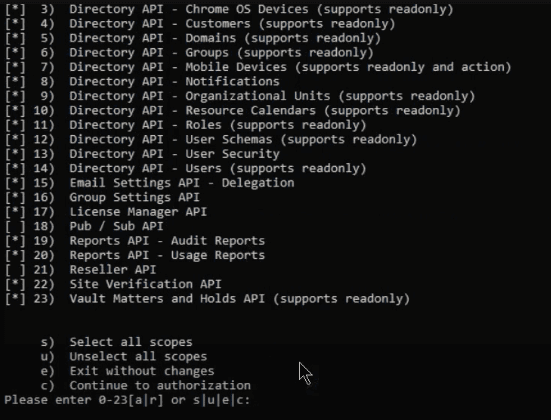
GAM will either open a web page or prompt you with a URL that you need to visit to authorize administrator access. Select your account and allow GAM to access and modify it.
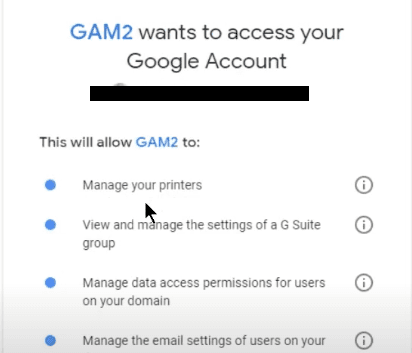
Step 4: Enabling access to user data and settings
This process allows GAM to act on behalf of users and modify user-specific settings and data, such as Drive files, calendars and Gmail signatures.
Use this command if you did not get an automatic prompt to authorize access to user data as part of the installation process.
Gam user a_user@example.com check serviceaccountTo complete the step, enter the email address of any normal, non-administrator user in your Google Workspace domain. Make sure that the Gmail, Drive and Calendar services are enabled for this user.
GAM will now try to authenticate itself through the service account with each individual service/scope and will act on behalf of the specified user. The first check is expected to FAIL.
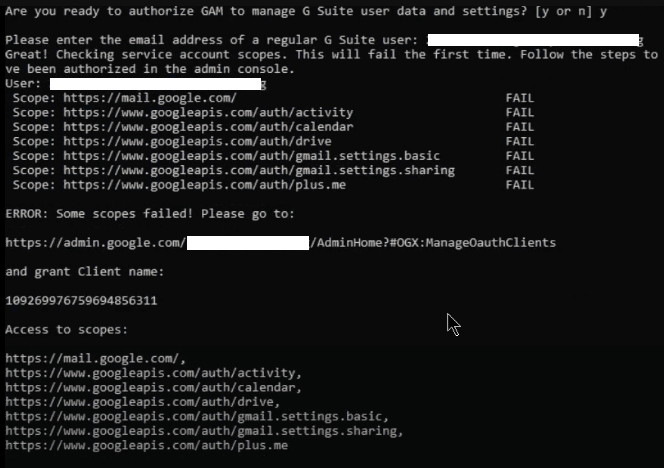
Go to the given URL and grant additional access to the specified scopes. If the check fails again, give it more time and check again.
And you are done — GAM is installed and ready to use. If you run into further problems, the GAM Wiki is always a great resource. (Or use the GAMADV-XTD3 Wiki if you install that version.)
Common GAM commands for everyday workspace management tasks
I won't even try to cover every GAM command here, as that would be almost impossible. Instead, we will briefly look at a few commands for everyday workspace management tasks.
You can find the complete GAM command list on the GAM Wiki. There is also a GAM cheat sheet, which will be invaluable once you understand the basic structure of GAM commands.
Here are 10 areas where GAM can make your work easier as a Google Workspace administrator.
1. Editing, creating or deleting users, groups or organizational units (OUs)
A few basic commands in this category:
- Command to retrieve data of the domain's users — such as names, customer IDs, last sign-in, license status, mailbox status, etc.
gam info user <email> - Command to retrieve group data, such as group members and their permissions.
gam info group <group> - Command to create a new user account.
gam create user <email address> firstname <First Name> lastname <Last Name> password <Password>- Command to delete a user.
gam delete user <email address>You can take these commands to the next level by adding further parameters, depending on what you want to achieve.
For example:
- Here is a command you can use to update groups with members from any given organizational unit. To modify roles, you can replace the word “member” with “owner” or “manager”.
gam update group <group email> add member allmail notsuspended ou <org name>}By modifying the “ou” parameter, you can update the group with a specific user, the users of another group, the users listed in a CSV file, or all users of the domain.
But you may find it easier to start simply and expand your commands as your GAM skills develop. Learn a few commands that you need regularly and build from those.
2. License management
- Command to assign a license belonging to a specific product ID (SKU) to a user or number of users. By modifying the “user” parameter, you can assign the license to a group, an organizational unit (OU) or all users of the domain.
gam user <username> add license <sku>- Command to ensure that all users of the given organizational unit have the same licenses assigned. If a user has a different license, the system revokes it.
gam ou <ouname> sync license <sku>- Command to update a group's license.
gam group <groupname> update license <sku> from <oldsku>3. Email management
- A command that lets you access the email mailboxes of all users in your domain and delete messages from a specific sender, with a specific subject or to certain recipients.
gam all users delete messages query <gmail search> [doit]- Command to delegate email access to a specific user. The delegate and the delegator must be in the same domain.
gam user <username> delegate to <delegate email>- A command that sets a custom signature for all users of the given organizational unit based on a created file. The command replaces the “{company}” placeholder with “AccessOwl”.
gam ou <ouname> file <signature file> replace “{company}” “AccessOwl”4. Drive management
- Command to create a spreadsheet containing the list of files shared externally by users on the admin MyDrive.
gam all users print filelist query "visibility='anyoneWithLink'" allfields todrive- Command to display all files that include all files of all users and contain the text “ProjectX”.
gam all users show filelist query "fullText contains 'ProjectX'" todrive5. Calendar management
- A command that assigns the editing access of the given “user email address” to the calendar owned by the given “calendar email address”. It then notifies users of the changes.
gam calendar <calendar email> add editor <user email> sendnotifications true- Command to remove the “user email” permissions of the given calendar.
gam calendar <calendar email> delete user <user email>6. Device management
- Command to list all devices in the domain
gam print devices- Command to add a new device to the Google company-owned device inventory using the given information.
gam create device serial_number <serial> device_type <type>- These command variations can be used to delete a user profile on a device, permanently erase all device data, cancel, approve or block a pending wipe.
gam delete|wipe|cancelwipe|approve|block deviceuser id <device id>7. Security and compliance
- Command to create a user activity report with the given parameters and save it to Google Drive in CSV format.
gam report usage user|customer parameters <comma separated parameters> [start_date yyyy-mm-dd] [end_date yyyy-mm-dd] [orgunit <ou of users>] [skip_dates yyyy-mm-dd...] [skip_days_of_week mon,tue...] [todrive] [users|group|csvfile]Here is an example of how to create a Google Sheet with complete data on users' Google Meet usage.
gam report usage customer parameters meet:total_call_minutes,meet:total_meeting_minutes todrive start_date 2020-03-01 skip_days_of_week sat,sun skip_dates 2020-03-068. Monitor users' third-party applications
Command to upload a CSV report of the given user's OAuth token activities to Drive (a great way to determine whether users are connecting to unauthorized applications).
gam report token todrive user <user email>9. GAM for sending Google Chatbot alerts
GAM can act as a chatbot and send messages to chat rooms or directly to users.
For example, you can run GAM on a Windows server and start a chat if the server becomes overloaded.
This is how you can set up a GAM chatbot.
10. Automating routine tasks
At an advanced level, you can automate various processes by combining multiple commands, such as user onboarding and offboarding.
For example, you can create a user onboarding process — create the user, send them their password, and add them to the appropriate groups — and create a user provisioning script that you run every time a new user is onboarded. You can do the same for offboarding.
GAM security considerations and their mitigation
Due to its powerful administrative capabilities, GAM also represents a potential security risk. Given that it can access and modify users' mailboxes and Drive, GAM can have catastrophic consequences in the hands of a malicious user.
Here are some measures to protect GAM installations and prevent unauthorized access:
- Avoid leaving GAM installations unattended.
- Consider running GAM on a dedicated virtual machine (VM) or using Google Cloud Shell.
- By practicing the principle of least privilege, you can set up the Google Cloud Projects service with minimal permissions. Or…
- Create separate GAM installations to delegate functions, ensuring that users can only access the functions they need.
- Secure authentication tokens: The authentication tokens generated by GAM during setup remain valid until the associated Google Cloud project is deleted. Make sure they are stored and shared securely.
Further resources
- GAM public chat: A community where you can get help using GAM and collaborate with other Google Workspace administrators on almost anything.
- GAM for Google Workspace: A forum for general discussions related to GAM.
Conclusion
So here is a comprehensive guide on how to get the most out of Google Workspace with Google Apps Manager. But what if GAM is not for you because you prefer a graphical user interface?
Well, the Google Admin Console still contains everything you need. You can combine it with another tool, such as AccessOwl, to simplify various tasks such as monitoring third-party applications, access management and reporting. Like the Admin Console, every operation can be performed on an intuitive interface that does not require advanced technical knowledge.
FAQ
What is GAM (Google Apps Manager)?
GAM is an open-source command-line tool for Linux, macOS and Windows that helps simplify the management of domain and user settings in Google Workspace. Administrators love it because it saves them clicks and allows them to perform tasks quickly and efficiently with scripts.
Is Google Apps Manager safe to use?
Yes. GAM is a tool trusted by tens of thousands of Workspace administrators to simplify their roles. Moreover, the tool was created and is maintained by Jay Lee — who currently works at Google as a strategic cloud engineer for Workspace. GAM is also open source, which means it can be checked for malicious code.
Is GAM better than the Google Admin Console?
GAM is faster and more efficient than the Admin Console because it uses command-line prompts instead of mouse clicks. However, it does not replace the Admin Console — which is a dedicated workspace management tool with an intuitive user interface.